Reading the docs…
Stopped.
A section is a frame with a title. Whatever’s inside moves with it.
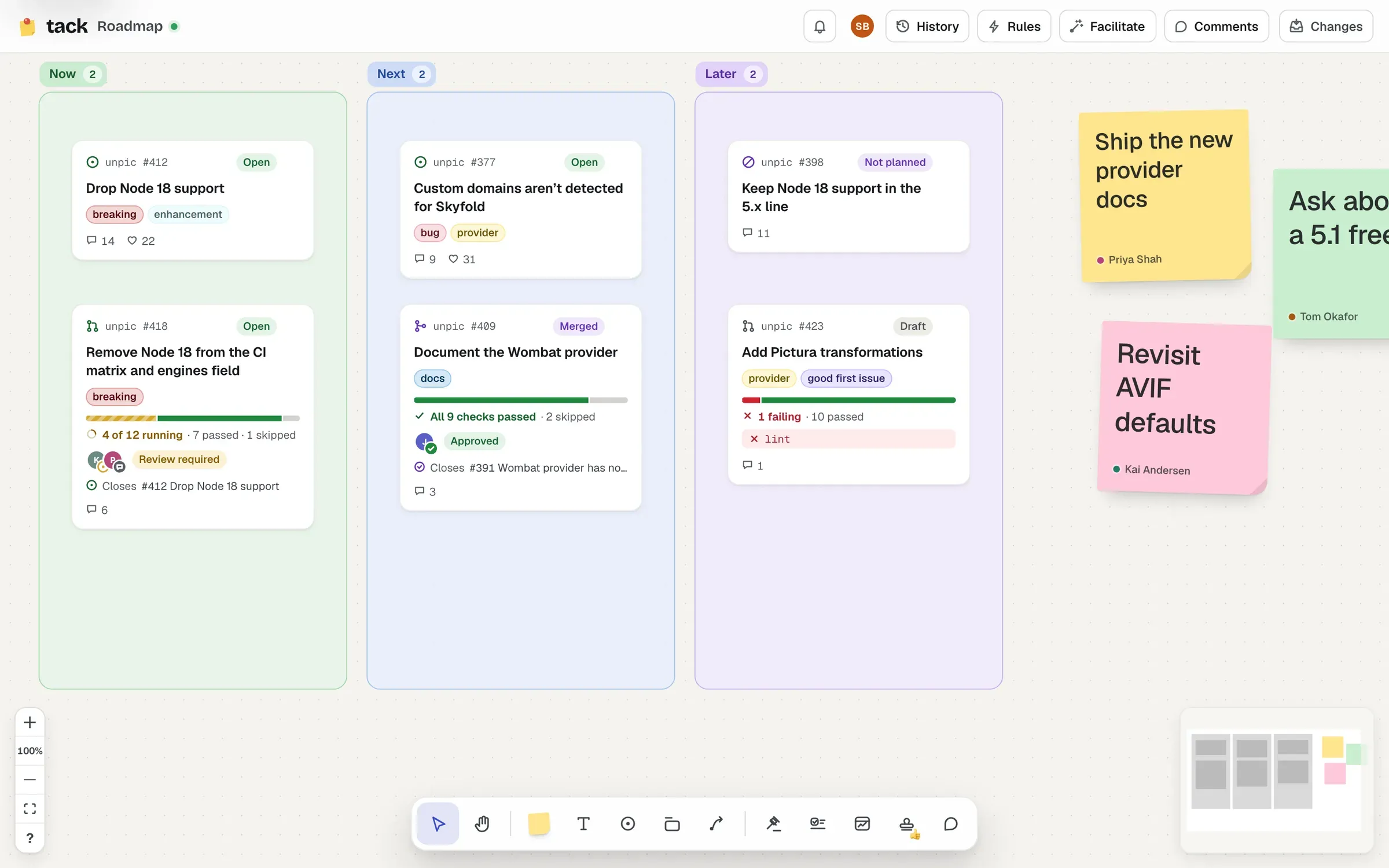
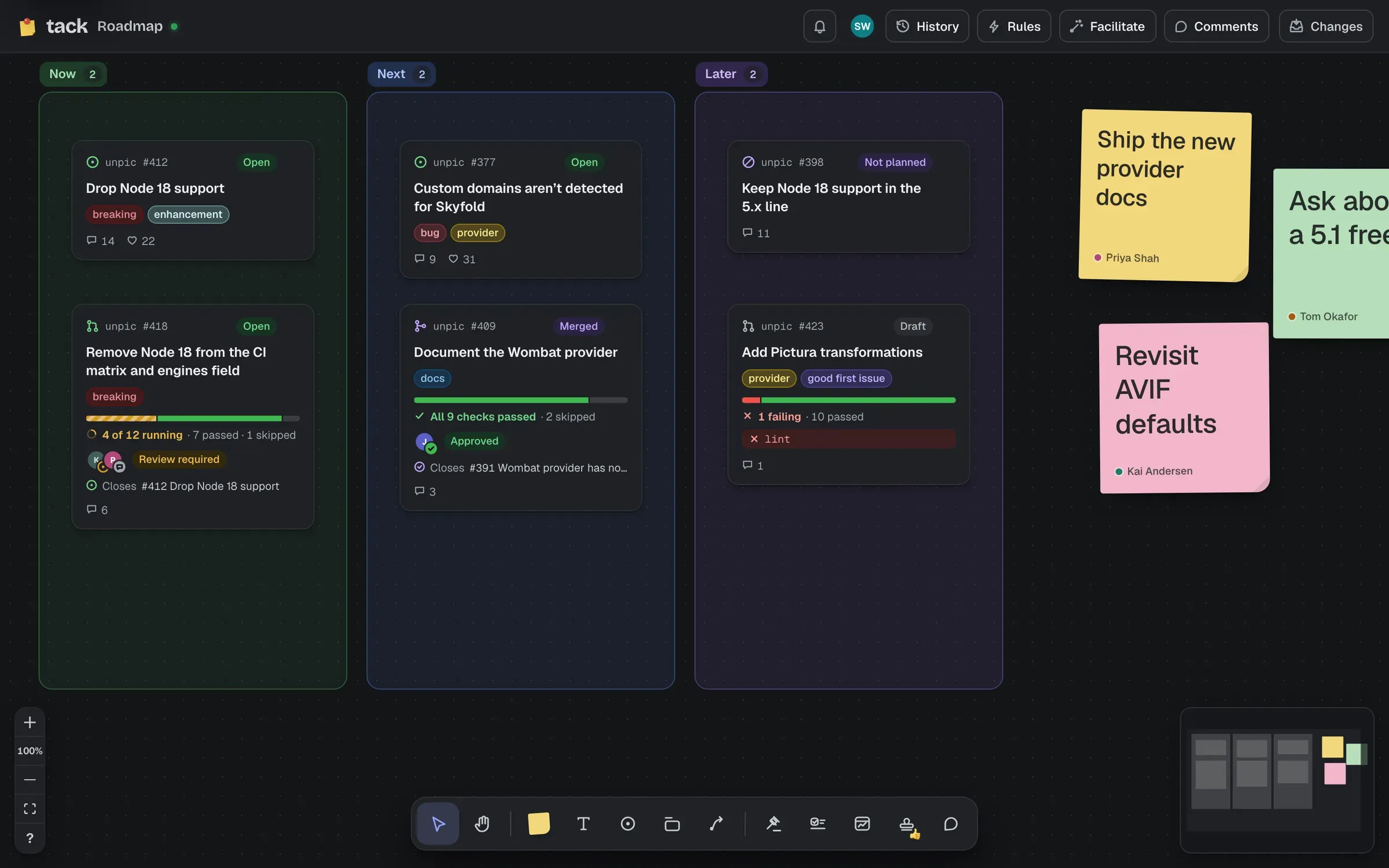
Press F, then drag out a rectangle, or click to place one. A section drawn around shapes takes them in. One placed with a click starts empty: it goes in the free space where you clicked (smaller, if that’s what fits), or the nearest free space, and never takes shapes from another section. Type its title straight away (“Name this section”); to rename it later, double-click the title, or select the section on its own and press Enter.
Sections come in grey, red, orange, yellow, green, blue and purple: choose from the colour button at the start of its bar (below), or, with several sections selected, from the colours beside each one’s title. The badge beside the title counts what’s inside.
Select a section on its own (as an editor) and one bar shows over its title, above everything on the board, in groups:
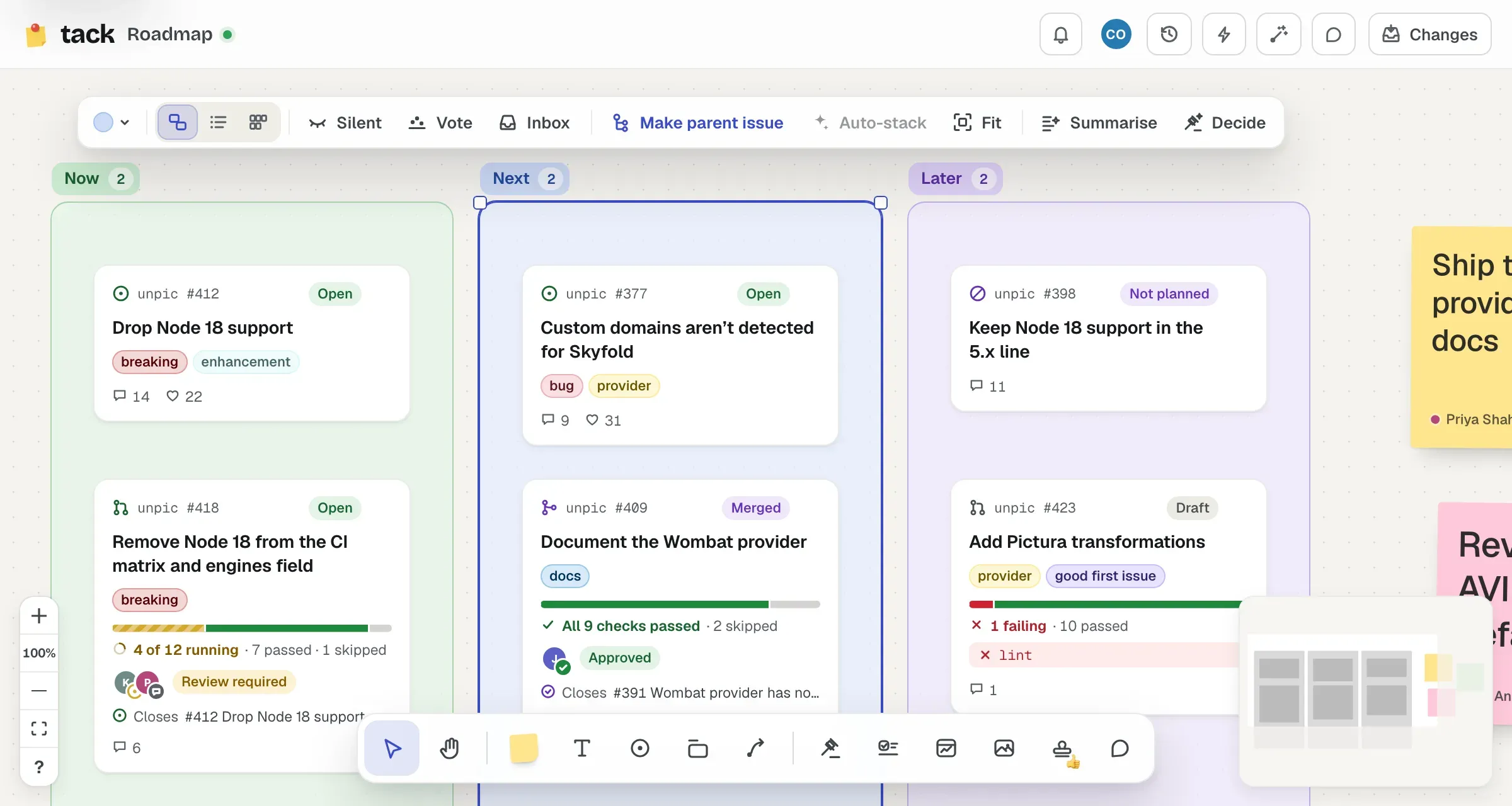
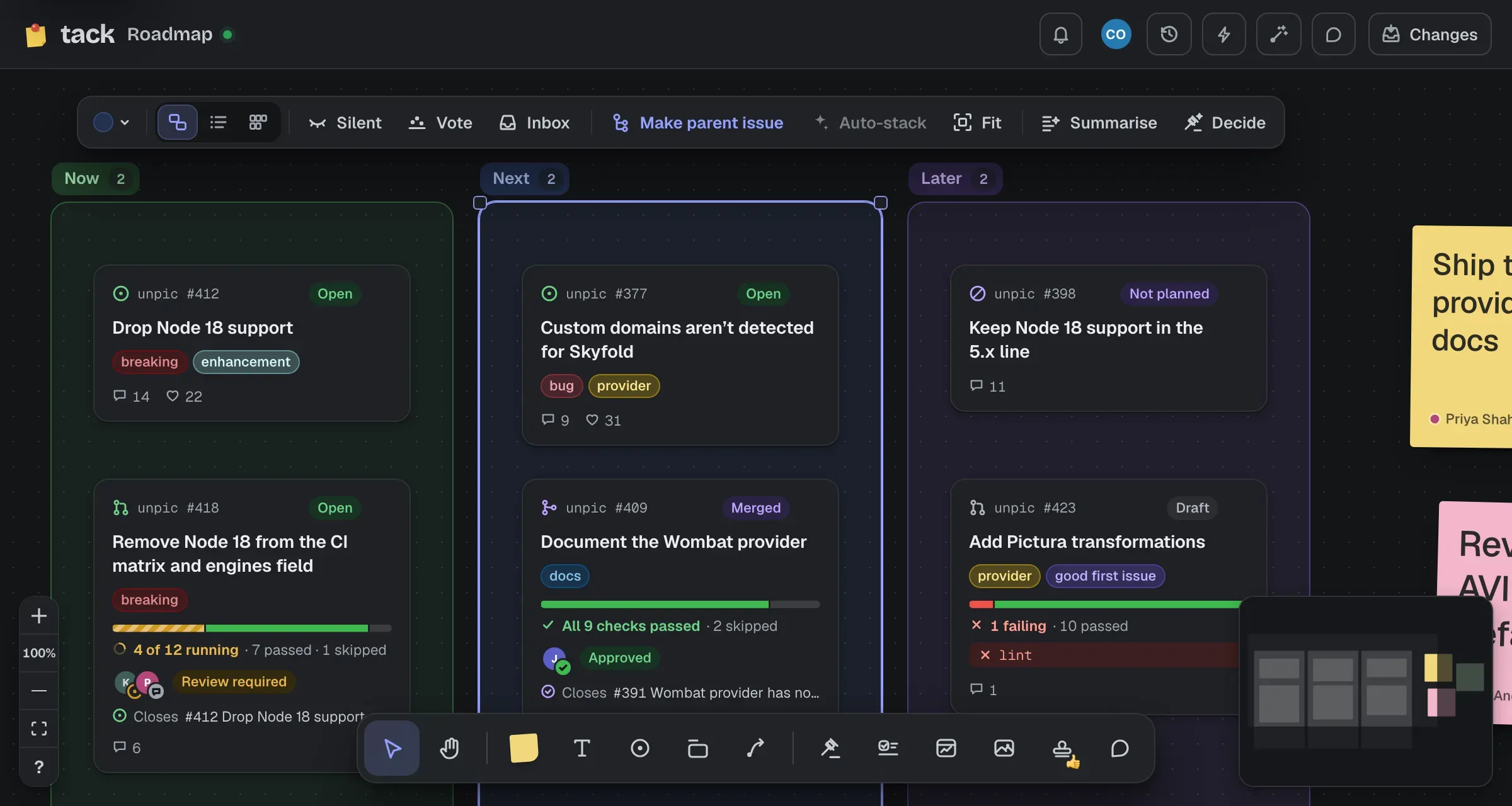
With no room over the title, the bar goes under the section, and it’s pinned to the edge of the view when the section fills it, so it’s always on screen and never under another shape. The colour, the display and Make parent issue are always there; the bar is as wide as the window lets it be, however small the section is on screen, and on a small screen what matters least goes, whole, into the … menu at its end. Tab from the selected section (or F6) goes to the bar; the arrow keys move along it, and Esc goes back to the section.
A shape belongs to the deepest section that contains its centre and is bigger than it. Drop something in and the section lights up as it’s about to land. Drag it out and it leaves.
A section grows to hold what’s in it. Drop, paste or add something that reaches over its edge (with its centre inside, so it belongs there), and the edge glides out to take it in, with a little room to spare. The same happens when a stack in it opens into its tray, or a card in it loads taller than it was placed. A section inside another one grows the one around it too. Undo takes back the drop and the growing together.
Sections never shrink on their own, and never grow past a size you chose by hand: resize one smaller than what’s in it and it stays that size. To snap a section to its contents, larger or smaller, select it on its own and choose Fit in its bar (⌥ F), or double-click any of its grips. It fits snugly around what’s in it, with room all round and for its title; an empty section fits to a small default size. It’s one undo step.
Sections showing a list or mini cards already size themselves to what’s in them, so they don’t need either.
A section can show what’s in it three ways. Select it on its own, and choose in its bar (Show contents as):
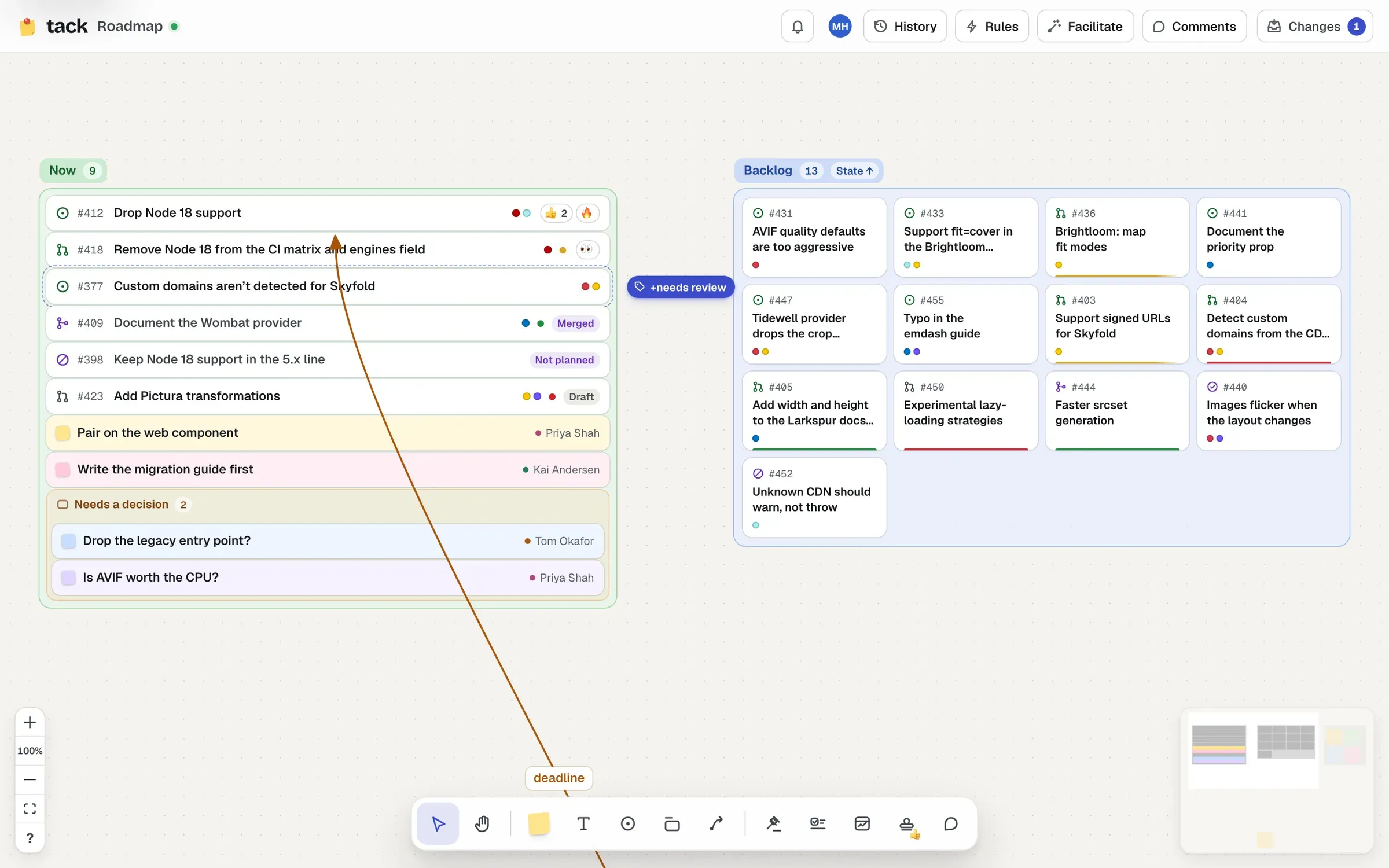
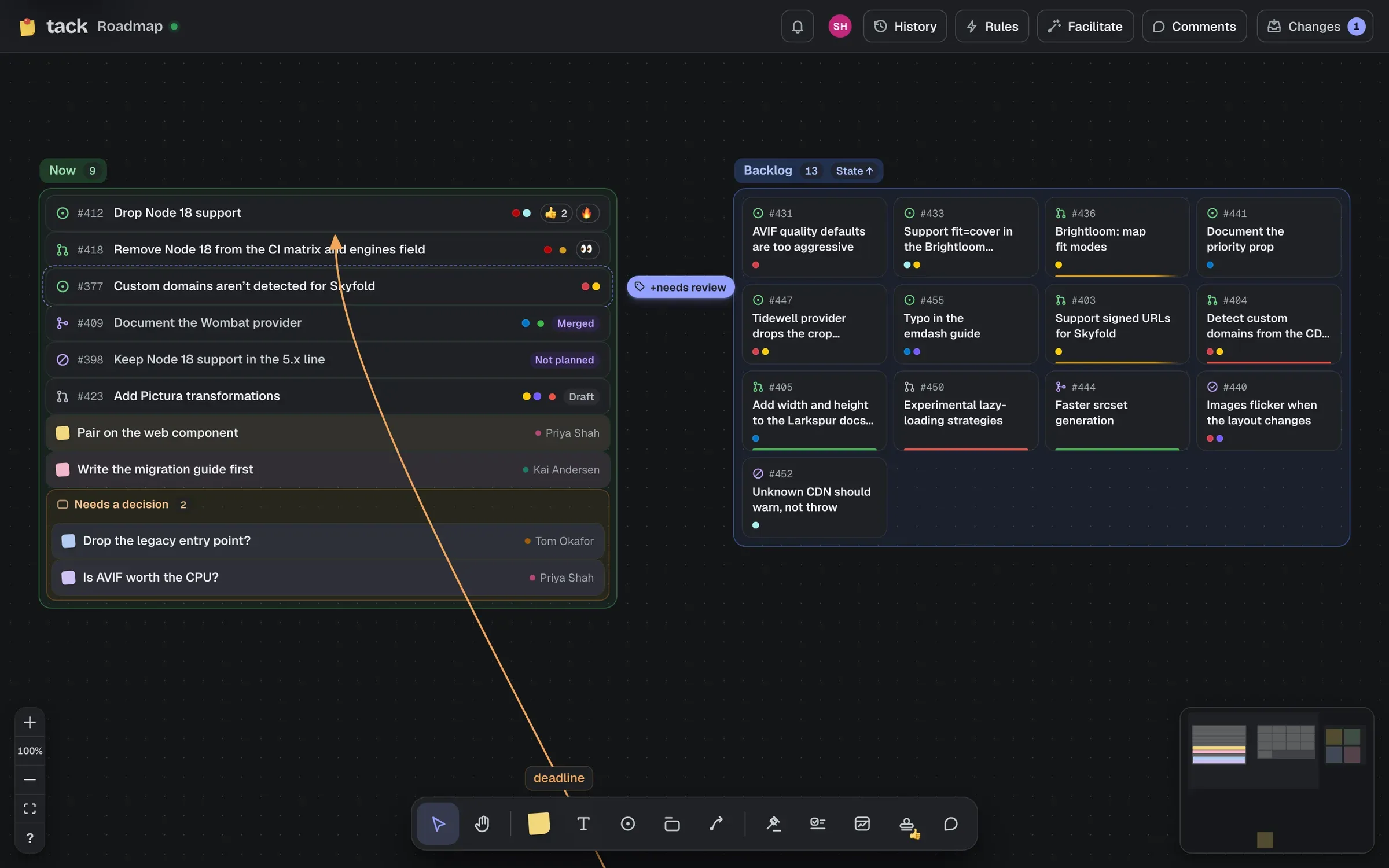
Switching never moves anything: every card keeps its place, so switching back to Cards puts the board back exactly as it was. Each switch is one undo step.
In a list or grid:
Stamps and dots show on rows, and stickies in silent mode stay face down. Lists and grids can’t be resized yet: switch to cards to resize the section.
Select a section on its own (as an editor) and its bar offers Make parent issue (⌥ ⇧ I): one new issue, with everything in the section as its sub-issues. See Built-in actions. With AI suggestions on, it also offers Auto-stack (⌥ ⇧ G): what’s loose in it sorted into named stacks, inside it. See Stacks.
Its bar also offers, under Facilitate:
A dependency map can map the cards in a section, and a rule can add matching items to one.