Reading the docs…
Stopped.
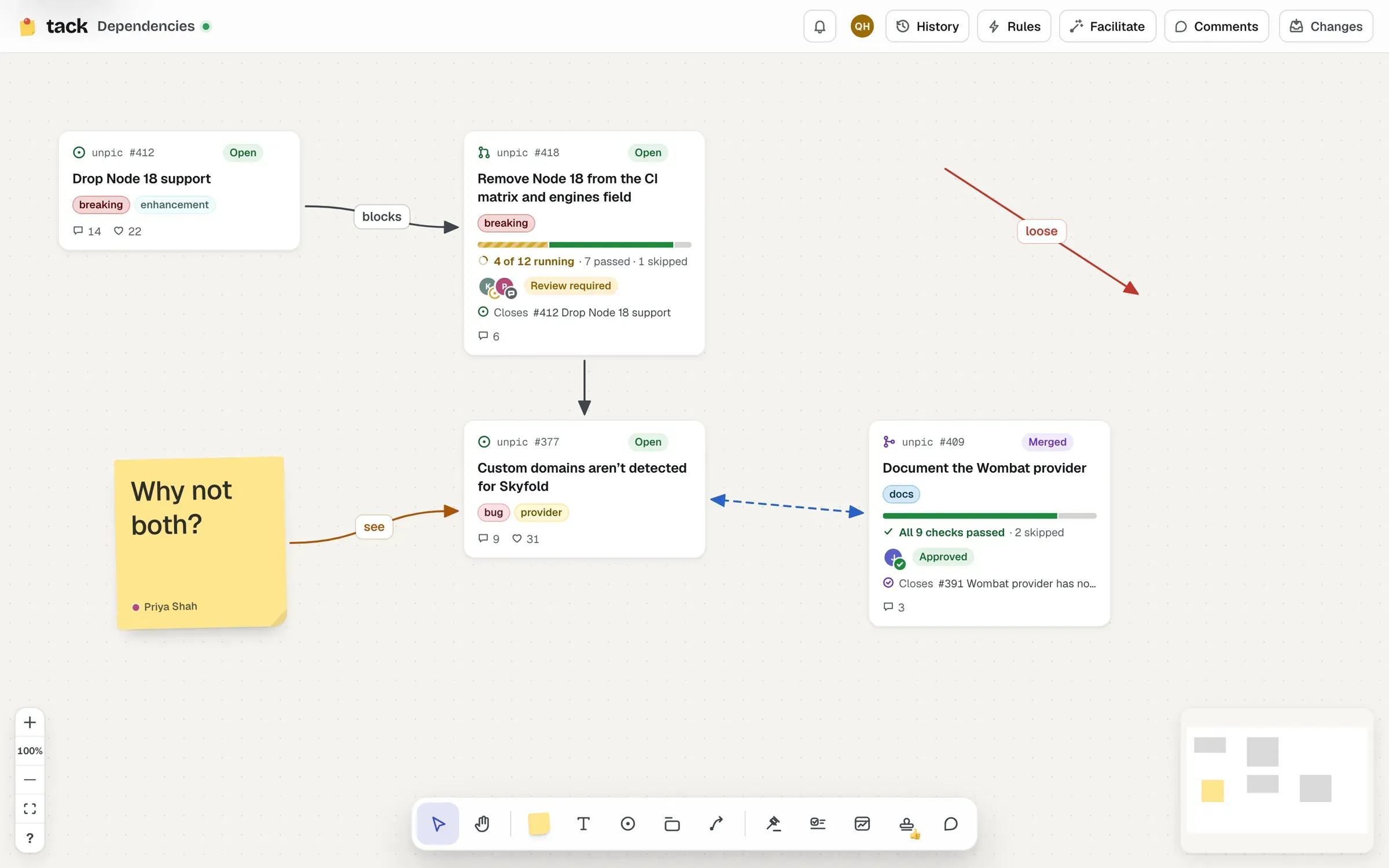
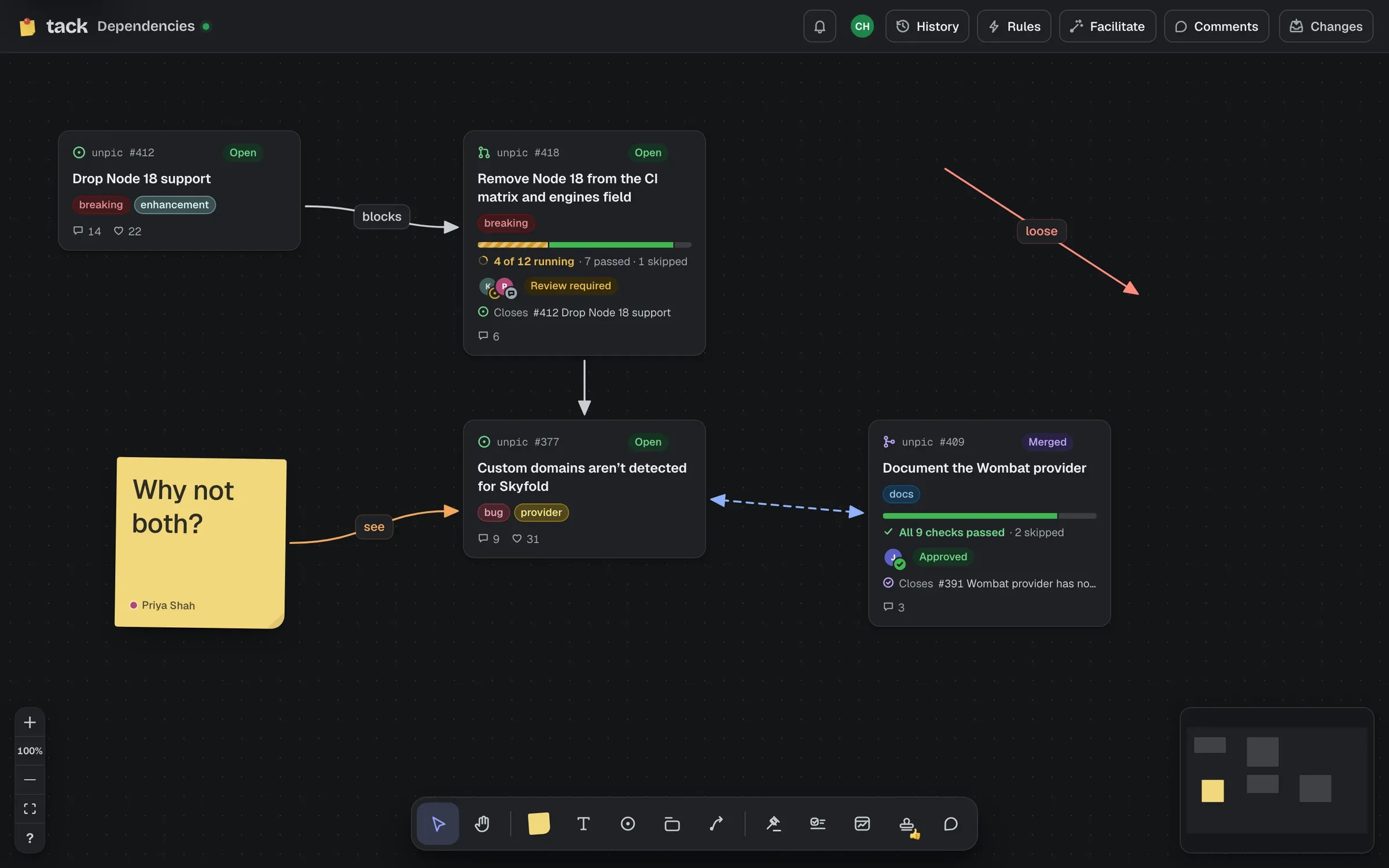
An end dropped near a shape’s outline pins to that point. An end dropped on a shape without pinning floats around its outline, always aiming at the other end. Either end can sit loose on the board.
To re-attach an end, select the connector and drag the handle at that end onto another shape, or onto empty board.
When a shape is deleted, its connectors keep a loose end where it was. A connector whose shapes are both deleted goes too.
Select a connector and press Enter, or double-click the line, to label it. The label sits at the middle.
The toolbar above a selected connector has:
New connectors use the last style you picked.
A connector between two issues can become a GitHub dependency. Select it and choose Blocked by (⌥ B): the arrow points from the blocker to what it blocks. See Built-in actions.
Connectors Tack draws itself (from Expand related, a dependency map or a pushed parent issue) are ordinary connectors you can restyle or delete.